


AI 3D · For 3D printing
Image to STL: Turn a Photo Into a 3D Print File
Many “image to STL” converters only extrude a flat picture into a relief. This one builds the whole object, front, sides and back, from a single JPG or PNG, then hands you an STL that stands upright on the bed at 100 mm tall. Scale it in your slicer and print.
About the image to stl
An STL file is only geometry: triangles that describe a closed surface, which your slicer turns into layers. Getting one from a photo used to mean hours of modelling or a 3D scan from dozens of pictures. Here, one clear photo is enough. The AI reconstructs the full shape, including the sides your camera never saw, and the export step prepares it for printing.
Every STL is exported Z-up (the way slicers expect), centred, resting on the build plate and scaled to 100 mm tall. That is a sensible starting size for figurines and desk toys. Change it in the slicer in one click; the proportions stay locked.
Photos that became printable models
Each model was built from the single image shown, then exported as a 100 mm STL. Open any of them above and switch to Clay to see the bare geometry your printer will print.
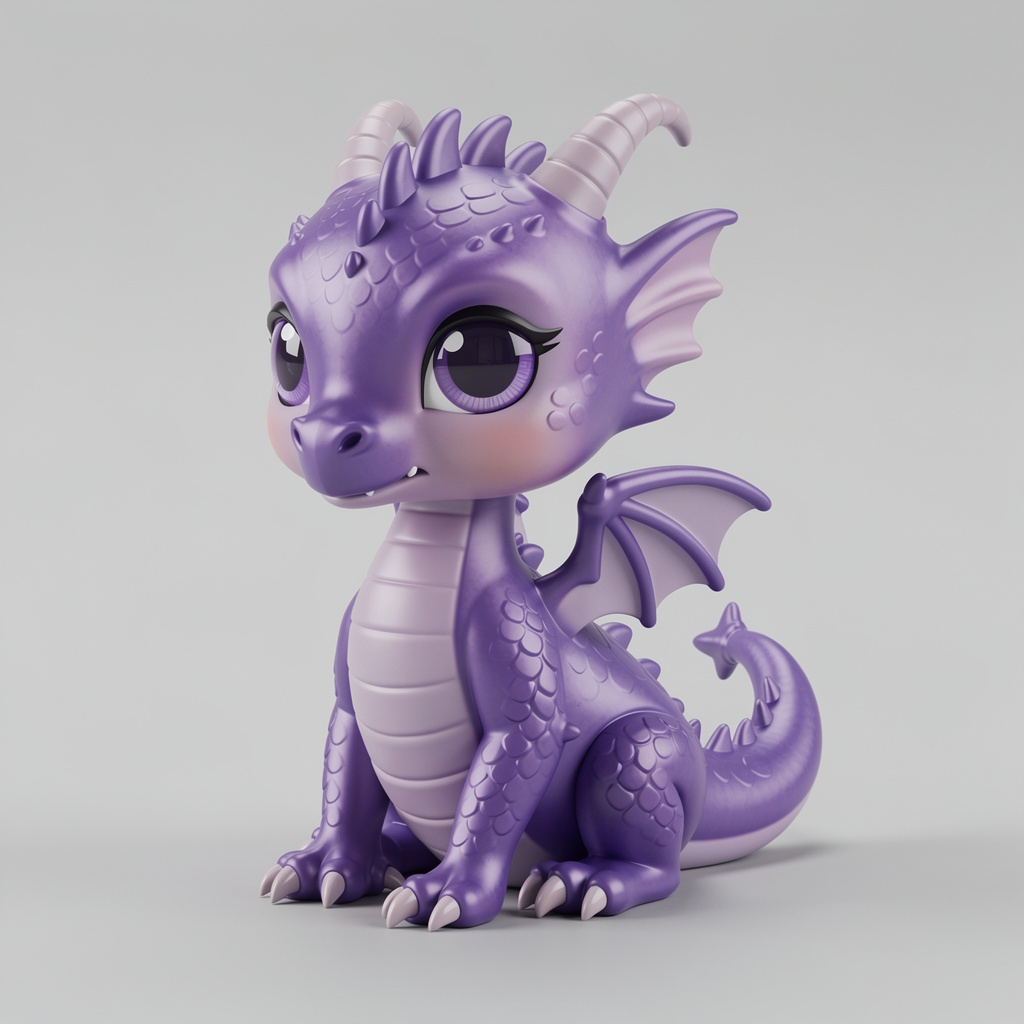 AI-generated
Dragon figurine
Tripo H3.1
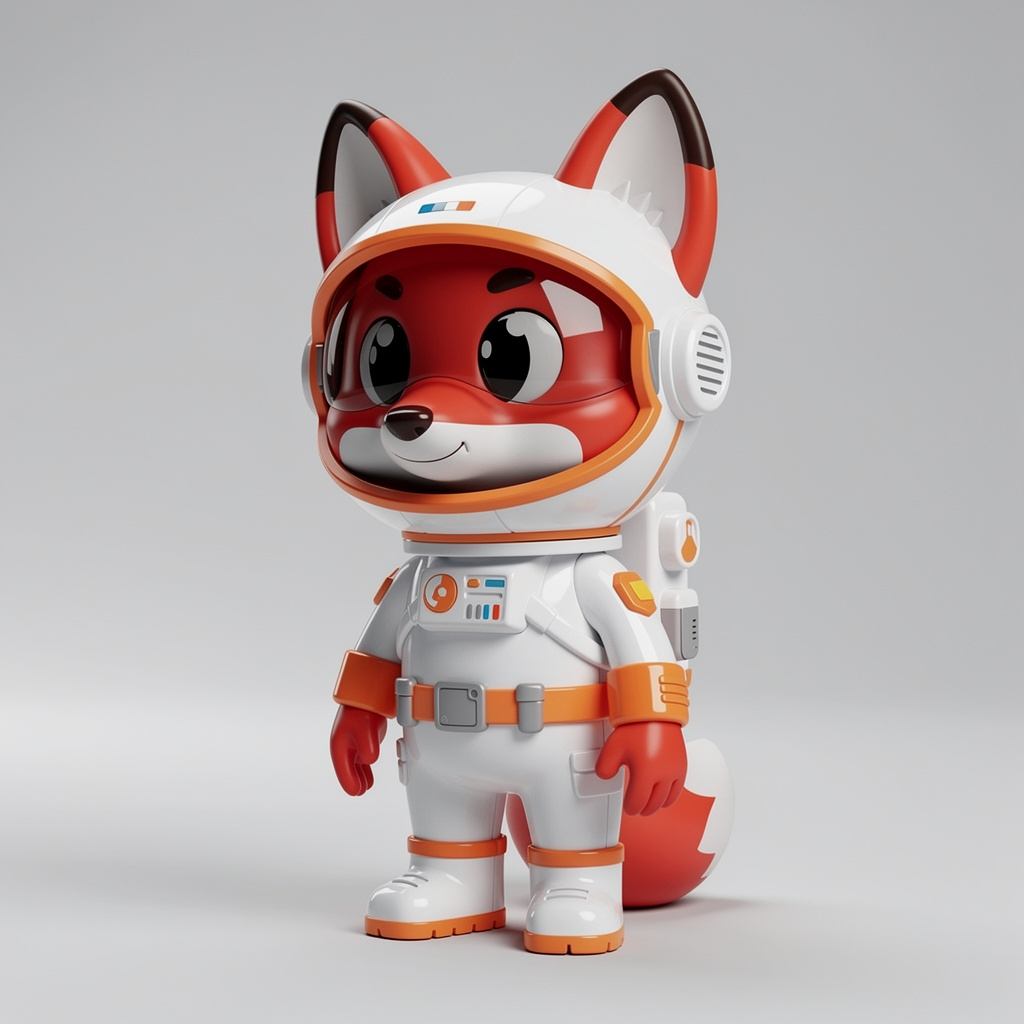 AI-generated
Fox astronaut vinyl toy
Tripo H3.1
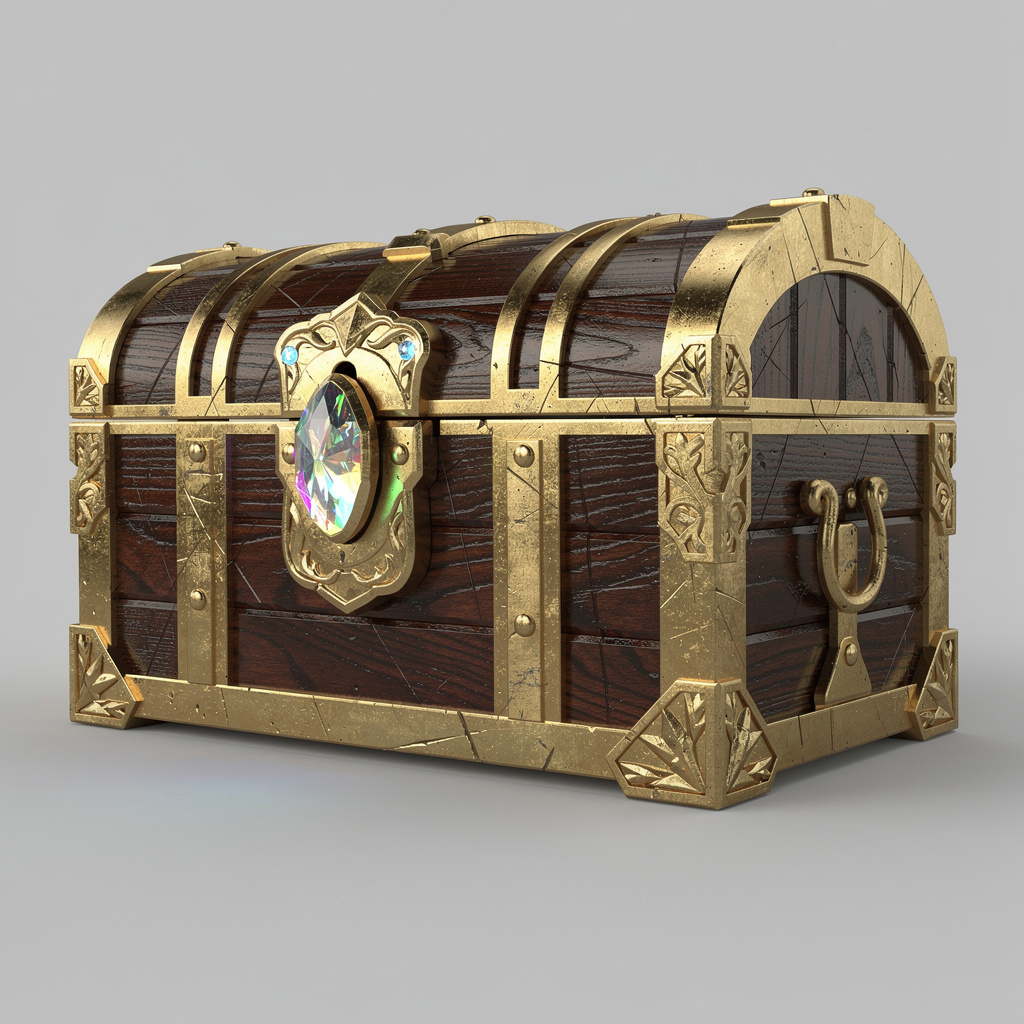 AI-generated
Fantasy treasure chest
Tripo H3.1
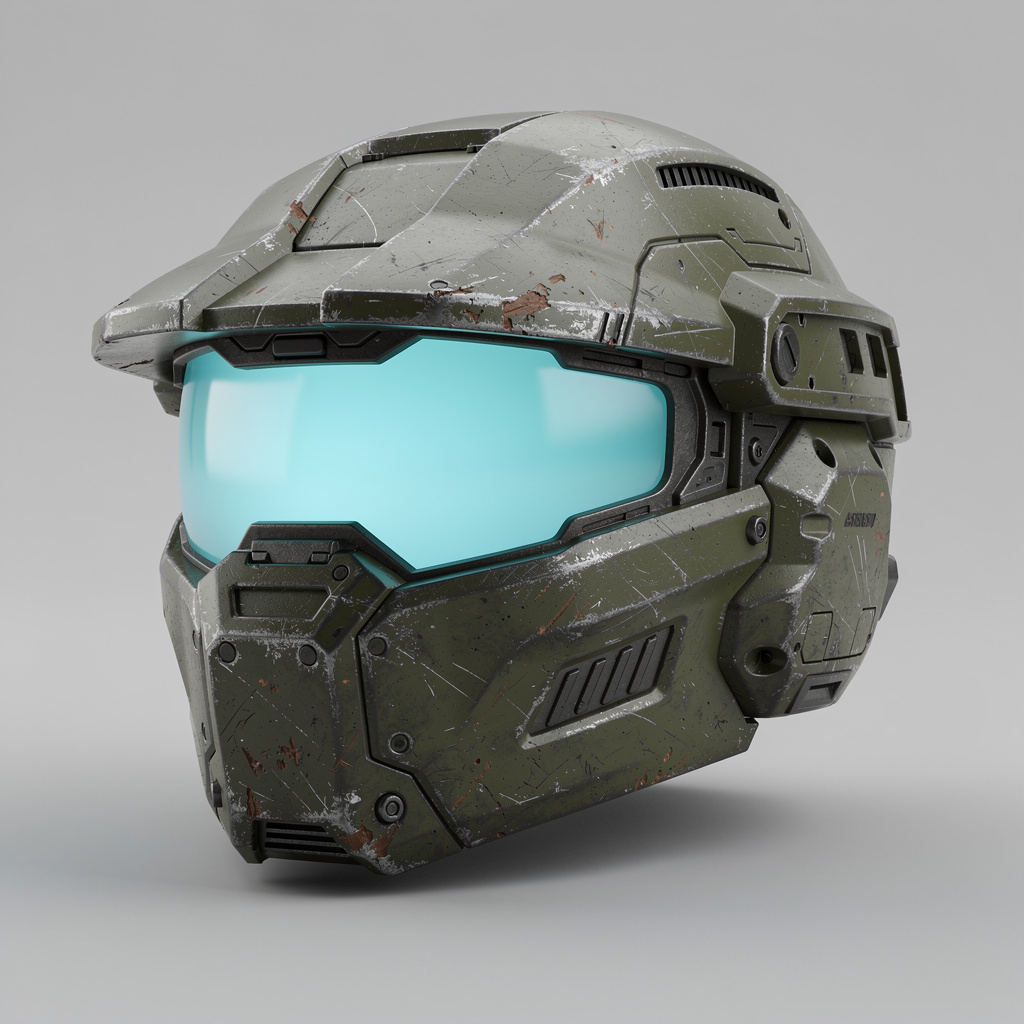 AI-generated
Sci-fi armored helmet
Tripo H3.1
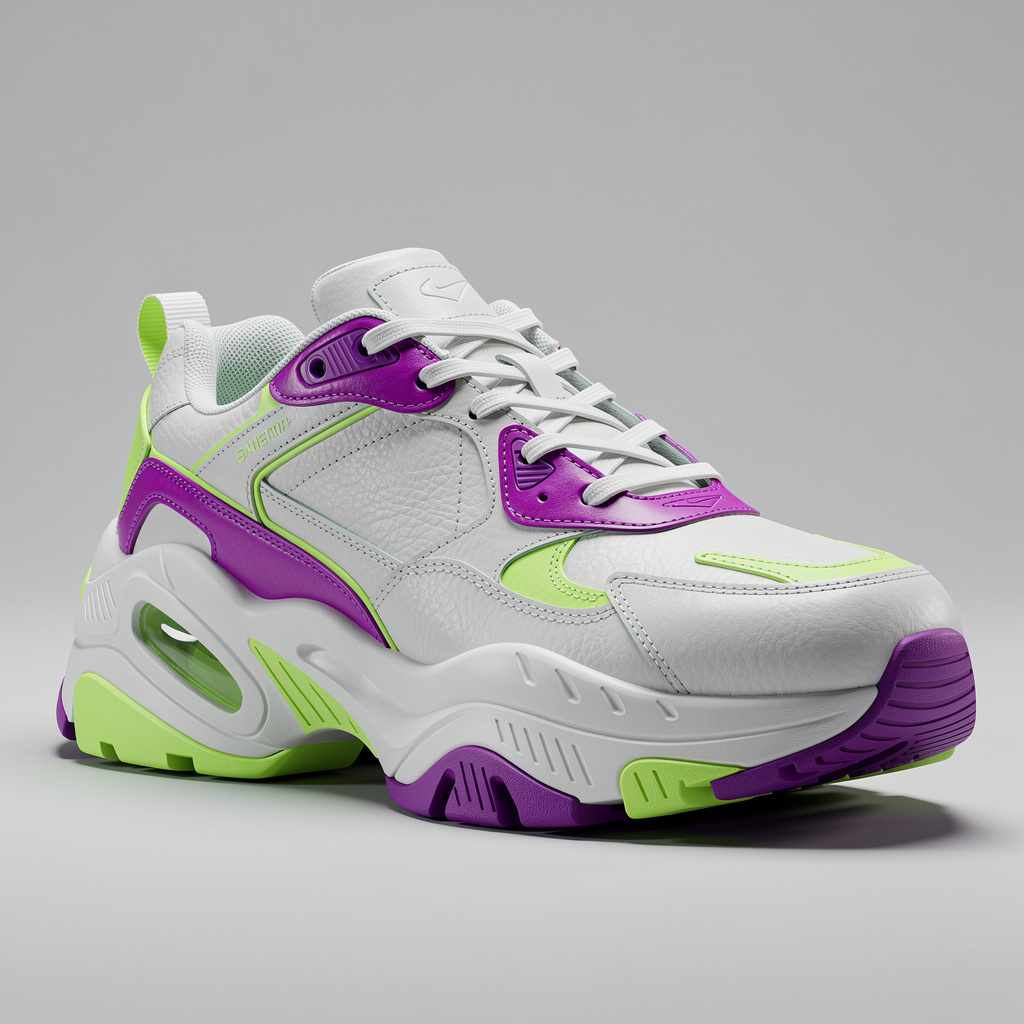 AI-generated
Chunky sneaker
Tripo H3.1
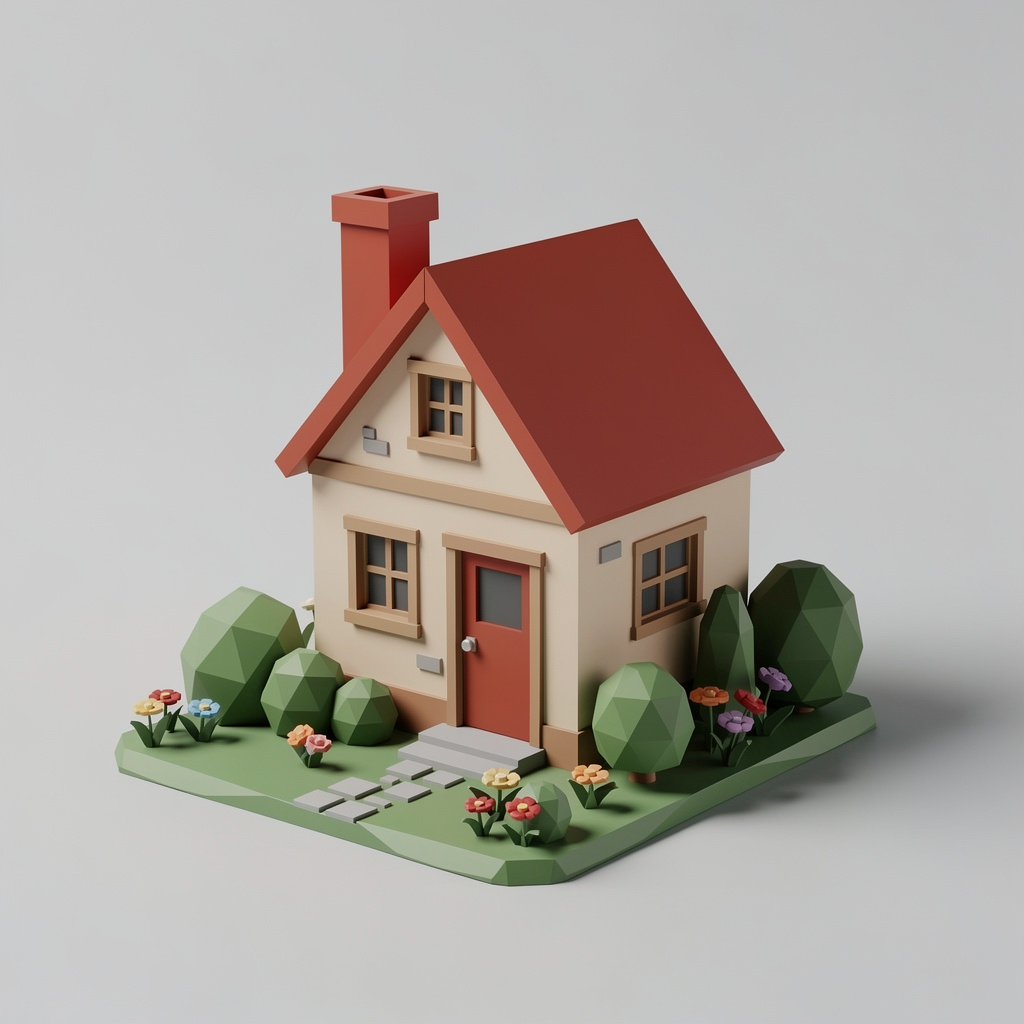 AI-generated
Miniature cottage diorama
Tripo H3.1
Slicer settings for AI-generated figurines
Starting points for an FDM printer with a 0.4 mm nozzle. Resin printers need no infill or walls settings: hollow larger models and add drain holes instead.
| Setting | Figurine (60–100 mm) | Large print | Why |
|---|---|---|---|
| Layer height | 0.08–0.12 mm | 0.16–0.20 mm | Thin layers keep faces and curves smooth. |
| Walls / perimeters | 3 | 3–4 | Solid shells survive sanding and painting. |
| Infill | 10–15 % | 10–20 % | Display pieces need little inner strength. |
| Supports | Tree / organic | Tree or normal | Fewer contact points on detailed surfaces. |
| Bed adhesion | Brim | Skirt or brim | Small footprints can tip over mid-print. |
| Scale | 60–100 mm | 150 mm + | Below ~60 mm, fine detail falls under nozzle size. |
STL, OBJ, GLB or USDZ?
Every model downloads in all four formats. Pick by what the file needs to carry.
STL
Shape only
Any slicer, any printer. The standard for 3D printing.
OBJ + texture
Shape + colour map
Colour-capable workflows, painting references, older CAD tools.
GLB
Shape + full PBR materials
Blender, game engines and web viewers; convert to anything.
USDZ
Shape + materials
Preview the print at real size in AR on a phone before printing.
From a picture to a printed object
Three steps from JPG to STL, what prints best, how to set up the slicer, and the questions people ask before their first AI print.
How it works
- 1
Upload a photo
One object, fully in frame, on a plain background. A product shot, a toy, a sketch you have coloured in, or an AI image from your library.
- 2
Generate the model
Pro gives the finest surface detail for figurines. Fast gives a quick draft in about a minute. Check the shape in clay view: that is what your printer will see.
- 3
Download STL and slice
Choose Download → STL. Open it in Cura, PrusaSlicer, Bambu Studio or any slicer, scale it, add supports where it overhangs, and print.
What you can use it for
Figurines and miniatures
Characters, creatures and tabletop minis from a single piece of art. Print in resin for fine detail or PLA for size.
Toys and collectibles
Turn a drawing or an AI concept into a desk toy, a keychain charm or a display piece.
Replacement parts and props
Knobs, caps, cosplay props and decorations from a clear photo of the original.
Gifts and keepsakes
Ornaments, planters and small sculptures you can print, paint and give away.
Features
- Full 3D reconstruction from one photo, not a flat relief
- STL exported upright (Z-up), centred and on the bed
- Scaled to 100 mm tall so it opens at a real size
- Clay view shows the bare geometry before you print
- Also downloads OBJ with texture for colour workflows
- Up to 1.5 million triangles of detail on the Pro engine
- Works from JPG, PNG, WEBP and HEIC photos
- Credits refunded automatically if a model fails
Tips for the best results
- Check clay view first: Texture can hide a thin wing or a floating part. Clay view shows exactly the geometry that will be printed.
- Mind thin parts: Antennas, tails and blades thinner than about 1.5 mm at 100 mm scale may not print on FDM. Scale up or thicken them in your slicer or in Blender.
- Let the slicer repair: Most slicers fix small mesh errors on import. If yours reports problems, run its repair tool before slicing.
- Use supports for overhangs: Tree (organic) supports work best for figurines: they touch the model at few points and break away cleanly.
A real 3D model, not a lithophane
Search “image to STL” and many tools simply turn brightness into height: dark pixels become deep, light pixels shallow. That makes a lithophane or a relief plaque, never an object you can hold. This page reconstructs the object itself in full 3D, so a photo of a dragon becomes a dragon you can turn over in your hand.
Frequently asked questions
How do I convert an image to STL?
Upload the image, generate the 3D model, then choose Download → STL. The file is ready for any slicer: upright, centred on the bed and 100 mm tall.
Is this a lithophane or a full 3D model?
A full 3D model. The AI rebuilds the whole object, including the back and sides, instead of turning pixel brightness into a height map.
What size is the STL?
The model is exported 100 mm tall with its proportions preserved. Scale it to any size in your slicer.
Which photos make the best prints?
A single object with a clear silhouette on a plain background. Chunky shapes such as figurines, toys, planters and props print best; very thin parts need to be scaled up.
Can I print it in colour?
STL files carry shape only. Paint the print, or download OBJ with its texture for colour-capable workflows.
Does it work with resin and FDM printers?
Yes. STL is the standard format for both. For resin, hollow larger models and add drain holes in your slicer.
Can I use JPG and PNG files?
Yes, and WEBP and HEIC. Images are checked, then turned into a 3D model you can download as STL.
Who can use it?
Adults (18+) with an active subscription or credits. It is built for objects, props, creatures and fictional characters. Only upload photos you have the rights to use; images showing anyone under 18 are blocked before any credits are charged.
How much does it cost?
From 4 credits per model for Fast and 6 for Pro, the engine we recommend for printing. Downloading STL, GLB, OBJ or USDZ is included.
Explore more AI photo tools
Image Editor
Edit any photo with a text prompt
3D Model Generator
Photo to 3D model, GLB & STL
Text to 3D
Describe it, get a 3D model
3D Game Assets
Low-poly props from one image
AI Headshots
Pro headshots from a selfie
AI Interior Design
Redesign any room from a photo
Object Remover
Brush away anything in a photo
Image Extender
Uncrop & expand any photo
Photo Restoration
Restore & colorize old photos
Background Remover
Transparent PNG in one click
Skin Enhancer
Natural one-click retouch
Change Camera Angle
New views of one photo
Mockup Generator
Your design on any product
See the full AI image tools collection or open the AI Image Studio.