



AI subtitles accuracy: fastest workflow for burned‑in captions and voiceovers
How to get accurate captions and polished AI voiceovers for TikTok/Reels/Shorts using burned‑in captions plus exported SRTs and a single editor workflow.
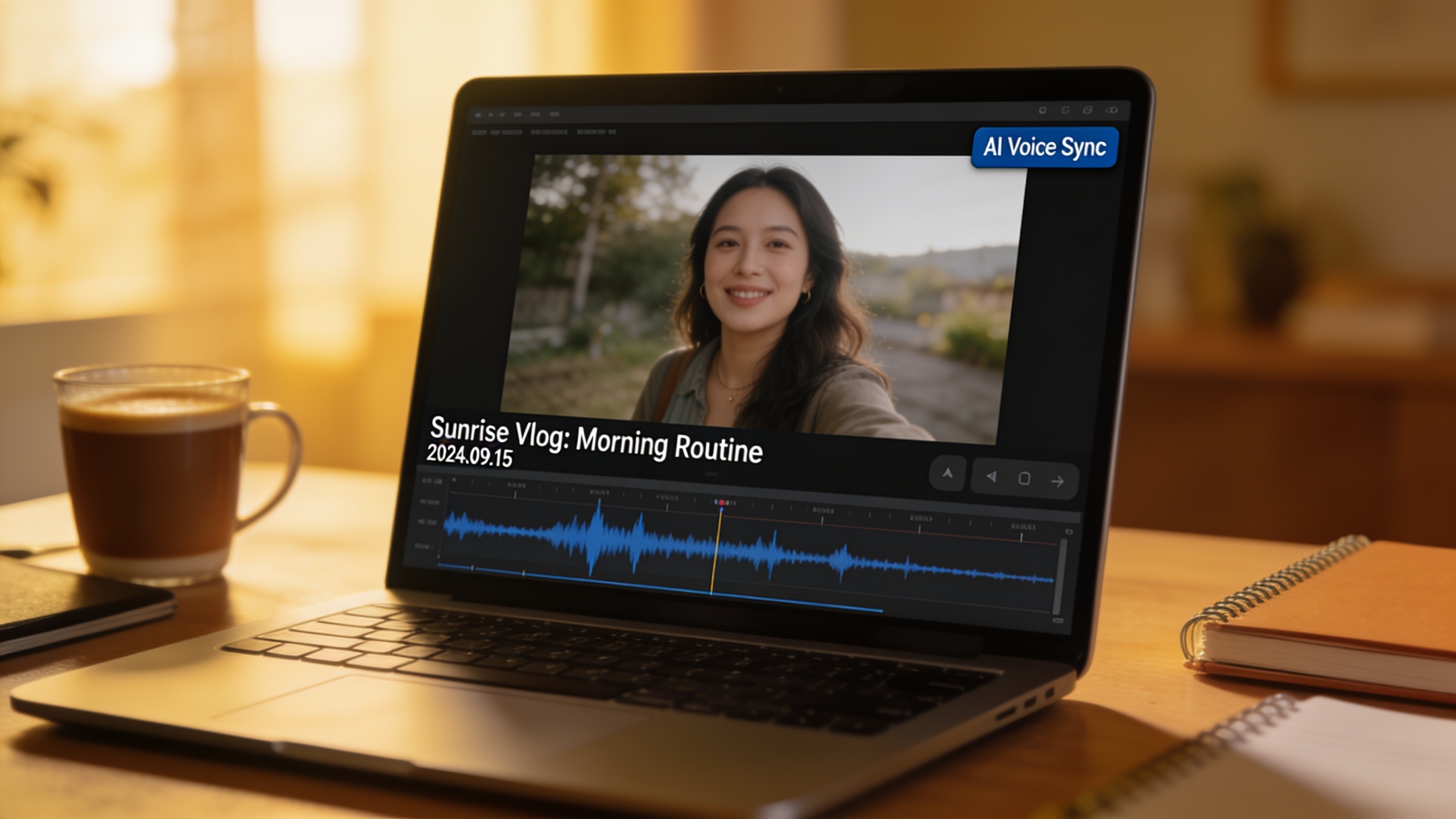 AI-generated
You need reliable captions and a polished voiceover for short social videos, fast. Automated captions are convenient, but they often miss speaker nuances, terminology, and punctuation — and platforms treat captions differently. This guide shows a practical workflow creators use to raise AI subtitles accuracy: generate captions automatically, quickly edit them, burn them into the video, and export a separate SRT so you have both outputs for accessibility and cross‑posting.
I’ll explain why accuracy matters, when auto captions or AI voiceovers help, common pitfalls, and step‑by‑step hands‑on instructions using a single editor (GoCrazyAI Media Mixer) so you can finish and export a ready‑to‑publish short in one pass.
Quick Answer
AI subtitles accuracy: Use burned‑in captions for short‑form socials plus an exported SRT for platforms that accept closed captions. Generate an automatic transcript, correct it to ~99% accuracy for accessibility, burn captions into the file for cross‑posting, and export a matching SRT. A single tool that adds voiceovers, music, and burned captions speeds this process.
Why caption accuracy matters: accessibility, engagement, and platform behavior?
Accurate captions matter because they affect who can use your content and how well it performs. For viewers who rely on captions as an accommodation, institutional guidance recommends review and correction of automated transcripts to meet accessibility standards; automated captions alone are not sufficient for synchronized media[1]. Many accessibility policies and university guidelines also reference targets close to 99% accuracy for captions used as an accommodation[2]. Beyond compliance, captions drive engagement: a large share of short‑form views happen with sound off, so readable captions increase retention and comprehension; industry guidance notes burned captions often work best for Reels/TikTok/Shorts because native caption handling is inconsistent across platforms[5].
Practical implications: if your captions contain mis‑transcribed technical terms, speaker mistakes, or missing punctuation, viewers can misunderstand the message. That harms accessibility and harms conversion for product or ad content. Correcting the transcript and then burning captions into the final MP4 gives you a shareable file that preserves readable text and timing regardless of the destination.
Auto-generated captions vs AI voiceovers: when each helps (and when they fail)?
Auto‑generated captions are fast and usually good for clear, well-recorded speech; AI voiceovers are useful when you want consistent narration or to replace noisy original audio. Use automatic captions when you have decent audio and need a transcript quickly; use AI voiceovers when the original recording is noisy, you want a different language, or you need a consistent brand voice.
Both tools fail in similar situations: noisy backgrounds, strong accents, overlapped speakers, and specialized vocabulary reduce ASR accuracy — a recent 2024 analysis found many ASR services still struggle on such inputs[3]. Automated captions also often omit punctuation and speaker labels, which creators later edit for readability and moderation reasons (CHI research shows creators actively edit for style and timing)[4]. AI voiceovers can sound unnatural if you pick the wrong voice or if the script contains idioms; expect to audition voices and tweak prosody. For best results, generate a transcript, correct it to readable copy, then either burn it in or use it to feed an AI voice with cleaned punctuation and speaker cues.
 AI-generated
Burned‑in (open) captions vs closed caption files: pros, cons, and platform realities?
Burned‑in captions are permanently part of the visual track; closed captions are separate files or metadata. Burned captions guarantee that anyone who sees your video — whether on TikTok, Instagram Reels, or a republished platform — will see the text exactly as intended. Closed captions (SRT, VTT) can offer viewer control and accessibility metadata but depend on platform support and correct upload.
Pros of burned captions: they travel with the file, keep styling consistent, and work well for autoplay‑muted feeds where visible text captures attention. Cons: they can’t be turned off, they add editing overhead if you need multiple styles, and they don’t carry accessibility metadata (like role or language tags) the way separate caption files can. Pros of caption files: they support accessibility workflows, language selection, and corrections without re‑rendering. Cons: many short‑form platforms have inconsistent support, so relying on SRTs alone can cause captions to be lost when cross‑posting; industry guides recommend delivering both burned videos and SRTs to cover every use case[6]. The practical best practice is to export a burned MP4 for feeds and also deliver a matching SRT for platforms or clients that accept closed captions.
 AI-generated
Hands‑on: Using GoCrazyAI Media Mixer to burn accurate captions into a short‑form clip (step‑by‑step)?
You can generate captions, edit them, and burn them into a clip inside GoCrazyAI Media Mixer without leaving the editor. Start by uploading your clip or AI‑generated footage, auto‑generate a transcript, correct speaker names and punctuation, then choose burn‑in style and export a single MP4 ready for feeds.
Detailed walkthrough: import your video (or an AI clip from GoCrazyAI AI Video Generator[/ai-video-pro]). In Media Mixer select the Subtitles panel and run auto‑transcription. The tool displays time‑aligned text; correct misheard words, add speaker labels if needed, and fix punctuation to make the captions readable for silent viewers. Choose a burned‑in preset (font, color, outline) or customize placement for safe‑zone compliance. After you burn the captions, export two files: the finalized burned MP4 and an SRT. Because Media Mixer includes voiceover and music panels, you can finish audio and visuals in the same session and export one ready-to-publish file. This keeps post‑production in one place and speeds turnaround — ideal when you must publish the same clip on multiple platforms with different caption support.
Link to the feature: polish your clip in the GoCrazyAI Media Mixer and export the finished file in one click: GoCrazyAI Media Mixer.
Hands‑on: Adding an AI voiceover, SFX, and music in Media Mixer — workflow for one‑click export?
Media Mixer lets you add an AI voiceover, sound effects, and background music in the same panel where you edit captions, then export a single finished file. Generate or upload a cleaned transcript first; that text can feed the voice generator or be pasted into the voice panel. Pick an AI voice from the library, adjust pace and emotion, and preview placement against the captions.
Practical flow: 1) Fix the transcript for punctuation and timing. 2) Open the AI Voices panel and paste the script; choose voice, adjust speed, and render. 3) Use the AI Music panel or add a track from the AI Music Library to set volume and ducking so speech remains clear. 4) Add brief SFX hits or stingers where you want emphasis. 5) Preview the whole mix with burned captions visible; adjust timing so captions match speech precisely. Finally, export one MP4 with burned captions and embedded audio. This single‑file export avoids bouncing between tools, which cuts delivery time for short‑form socials.
 AI-generated
What practical tips raise AI subtitle accuracy (prepping audio, speaker labels, punctuation, timing)?
Improving AI subtitles accuracy usually depends on better inputs and minimal but targeted edits. Prepare audio by reducing background noise, recording close to the mic, and keeping one speaker on the primary channel. Add a short verbal cue or pause before important terms so ASR can segment correctly. Provide a cleaned script or glossary for specialized words when possible.
Specific steps that help: normalize audio level to avoid clipping; remove music under speech during transcription; annotate speaker changes during editing; add punctuation and line breaks so captions read like natural sentences; set caption line length to a readable maximum (35–42 characters). Timing: align captions to natural speech breaks, and avoid splitting short phrases across slides. If you plan an AI voiceover, feed the voice generator the cleaned, punctuated script — that improves natural prosody. For regulated accessibility, aim to review edits until the transcript reaches near‑99% accuracy for use as an accommodation, as recommended by accessibility guidance[2].
 AI-generated
What common mistakes should creators avoid when relying on AI captions and voiceovers?
Creators often assume auto captions are finished; they are not. A common mistake is exporting without reviewing for accuracy, which can fail accessibility and confuse viewers. Another mistake is relying only on burned captions with poor contrast or tiny font — that reduces legibility across devices. Finally, not exporting an SRT alongside a burned file is a missed opportunity; closed caption files are required for some distribution workflows and for later edits.
How to avoid these mistakes: always proofread transcripts and correct speaker labels; use high‑contrast, platform‑safe font sizes and check the safe zone for each destination; export both a burned MP4 and a matching SRT to cover feed visibility and accessibility needs. Additionally, test your final file on the target platform because caption rendering and crop can differ between Instagram, TikTok, and YouTube Shorts — baking in margin and checking multiple aspect ratios prevents clipped text. These checks reduce rework and help your content meet both engagement and compliance goals.
Frequently Asked Questions
How accurate do captions need to be for accessibility?
Accessibility guidance typically expects captions used as an accommodation to be close to 99% accurate; automated transcripts should be reviewed and corrected to meet those standards[2].
Should I always burn captions into my short‑form videos?
Burn captions for social feed distribution because they travel with the file and ensure visibility on autoplay mute; also export an SRT for platforms that accept closed captions and for repurposing[6].
Can I use auto captions as the script for an AI voiceover?
Yes — but clean the transcript first (fix punctuation, speaker cues, and uncommon words) so the AI voice reads naturally and timing matches captions.
What causes ASR systems to fail on short clips?
Noisy audio, overlapping speakers, accents, and specialized vocabulary reduce ASR reliability; a 2024 analysis found many services still struggle under these conditions[3].
How do I deliver files so clients and platforms are covered?
Deliver a burned‑in MP4 optimized for feeds plus a matching SRT/VTT caption file. That combination covers inconsistent platform caption support and accessibility requirements.
Conclusion
Final thoughts: For short‑form socials, the fastest, most reliable route to accurate captions and polished voiceovers is a single editor workflow: auto‑transcribe, correct to accessibility quality, burn captions for visibility, and export an SRT for distribution. That approach saves time and reduces errors when you cross‑post. Polish your clip in the GoCrazyAI Media Mixer and export the finished file in one click.
Sources
- Video and Other Synchronized Media | Section508.govsection508.gov ↗
- Captions and Transcripts | Section508.govsection508.gov ↗
- Measuring the Accuracy of Automatic Speech Recognition Solutions (arXiv, 2024)arxiv.org ↗
- Caption It in an Accessible Way That Is Also Enjoyable (CHI 2024 paper)makeabilitylab.cs.washington.edu ↗
- How to Add Captions to Reels, TikToks and Shorts (SocialKit, 2026)socialk.it ↗
- Caption & Subtitle Specs Cheatsheet for Social Video Ads (Klip Kanvas)klipkanvas.com ↗
- Burned‑In Subtitles vs Closed Captions: The Complete Difference (mlslabs)mlslabs.io ↗
- How Do Burned‑In Captions Affect Accessibility? (BOIA)boia.org ↗
- Hardcode vs Softcode Subtitles — Pros and Cons (Intlpull)intlpull.com ↗
- Social Media Best Practices (Laurentian University, 2026 guide)laurentian.ca ↗