


STL vs OBJ vs GLB vs 3MF: Which 3D File Format Should You Use?
STL vs OBJ vs GLB vs 3MF explained in plain words: what each 3D file format stores, which tools open it, and which one to pick for printing, games, the web or AR.
 AI-generated
Quick Answer
Use STL for 3D printing, GLB for games, web viewers and Blender, OBJ when an older tool needs it or you want a simple mesh with a texture image, 3MF when your slicer supports it and you want units and colour in the file, and USDZ for augmented reality on iPhone and iPad. In the STL vs OBJ question specifically, pick STL for printing and OBJ when you need textures.
What does each 3D file format store?
 AI-generated
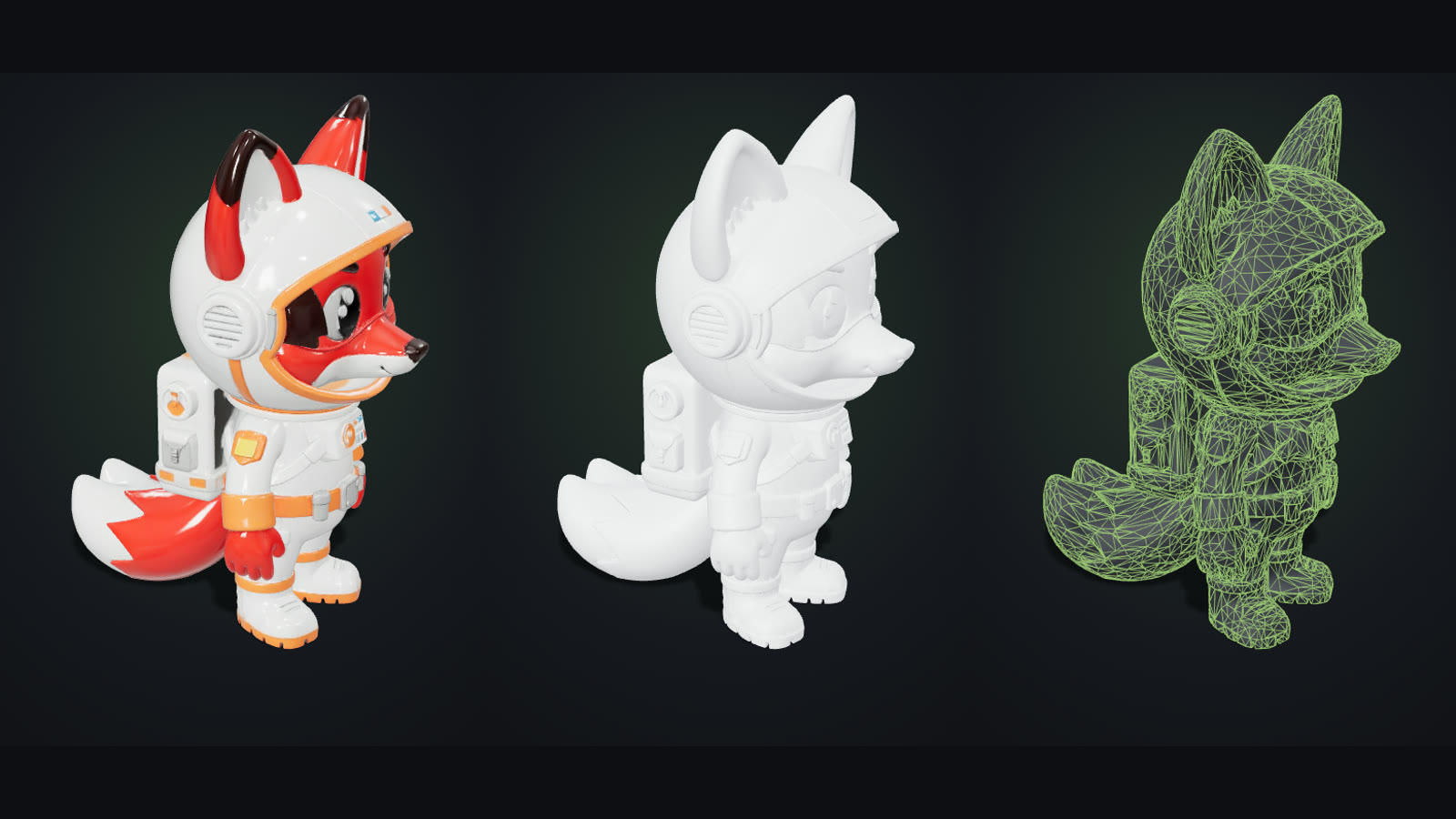
The same model can be saved in every format, but not every format keeps every part of it. Think of it as layers: geometry, UV coordinates, materials and textures.
- STL (stereolithography): a list of triangles, nothing else. No colour, no units, no textures. It dates back to the 1980s and every slicer reads it. See the STL format reference).
- OBJ (Wavefront): triangles or quads plus UV coordinates and normals. Materials live in a separate .mtl file that points to texture images. Easy to read, widely supported, but it arrives as several files. See the OBJ format reference.
- GLB (binary glTF 2.0): the whole model in one file, including PBR materials (colour, roughness, metal, normal maps) and embedded textures. The Khronos Group designed glTF as the "JPEG of 3D" for delivery; see glTF at Khronos.
- 3MF: a modern 3D printing format with real-world units, colours and even print settings in one package. Supported by most current slicers. See 3MF.
- USDZ: Apple's package for AR Quick Look on iPhone and iPad. See AR Quick Look.
STL vs OBJ: which one should you pick?
For printing, STL. Slicers only need the shape, and STL is the most compatible file you can hand them. OBJ is the better choice when you need the texture: painting references, colour-capable workflows, or older 3D tools that do not read glTF. If a tool accepts both OBJ and GLB, GLB is usually the cleaner choice because materials cannot get separated from the mesh.
GLB vs STL: when does it matter?
GLB vs STL comes down to what the model is for. A GLB keeps the look of the model: the painted texture, how shiny each surface is, the fine detail stored in normal maps. An STL keeps only the geometry. Send STL to a printer and GLB to anything that displays the model on a screen: Blender, Unity, Unreal, Godot or a web page.
Examples: one model, five downloads
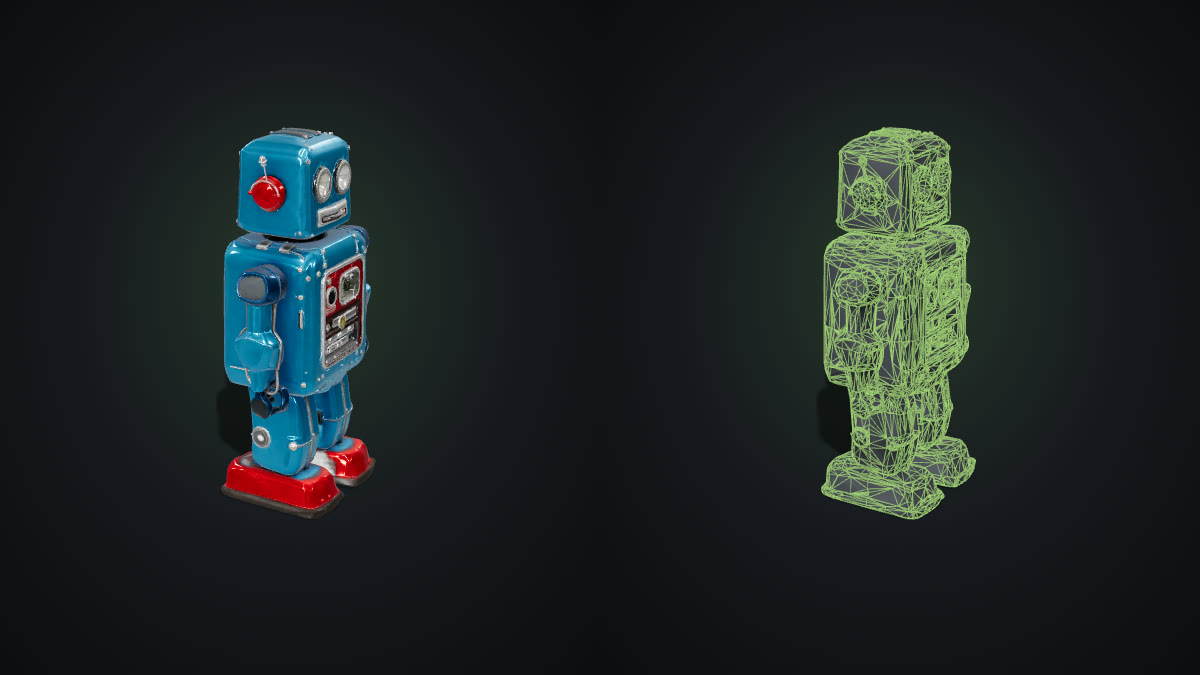
Take a textured robot figure made with the AI 3D Model Generator:
- The GLB opens in Blender with its painted metal, rubber feet and glass eyes intact.
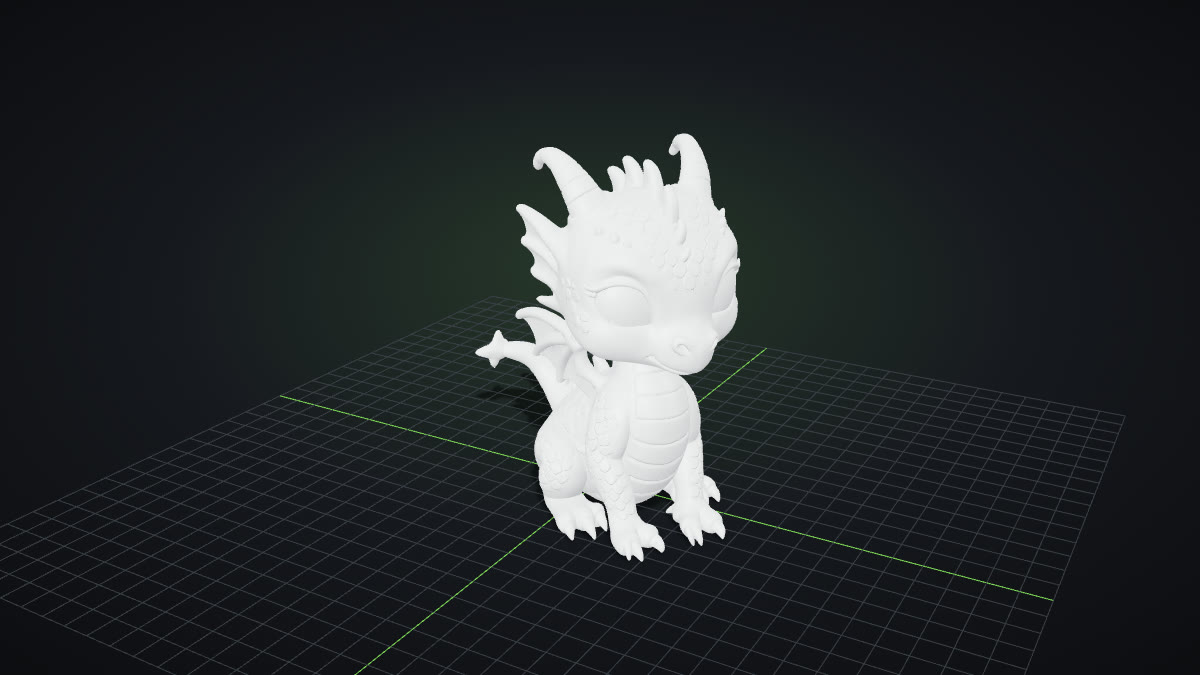
- The STL opens in a slicer as a clean grey shape, ready to scale and print.
- The OBJ ZIP unpacks into robot.obj, robot.mtl and robot.png: the same look, in three files.
- The USDZ opens straight into AR on an iPhone, so you can see the figure on your desk at real size.
- A 3MF is what your slicer usually saves after you arrange the print, with units and settings included.
 AI-generated
How to do it with GoCrazyAI
Every model made with the GoCrazyAI AI 3D Model Generator downloads in four formats from the same menu: GLB (the original, with PBR materials), STL (upright and 100 mm tall for slicers), OBJ with its texture in a ZIP, and USDZ for AR. Printing? Start from Image to STL. Building a game? The AI 3D Game Asset Generator makes light meshes that suit GLB delivery. For import steps per engine, see how to import a GLB into Unity, Unreal, Godot and Roblox.
Common mistakes with 3D file formats
- Sending GLB to a slicer. Some slicers accept it, many do not. STL or 3MF is the safe choice.
- Moving an OBJ without its .mtl and textures. The mesh arrives grey. Keep the three files together.
- Expecting colour in an STL. The format has no colour. Use 3MF or a painted print.
- Converting back and forth. Each conversion can lose materials or change scale. Keep the GLB as your master file.